Usage Guide
Basic Use
The Contact Card
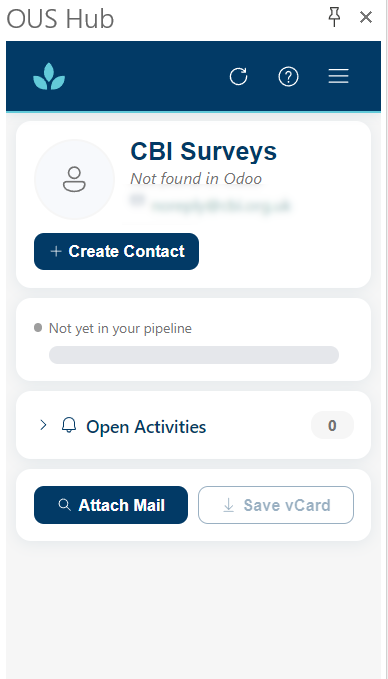
Every time you open an email, OUS Hub automatically looks up the sender in your Odoo contacts and shows you a Contact Card:
- Photo and company logo pulled directly from Odoo
- Contact name, job title, and company
- Temperature rating — a visual indicator of how warm or active this contact is in your CRM pipeline (hot, warm, cold), giving you an at-a-glance sense of relationship health before you reply
- Pending activities — all upcoming calls, meetings, emails, or to-dos for this contact, across every Odoo model, shown together in one list
- CRM records — linked leads and opportunities with their current pipeline stage
- Project tasks and helpdesk tickets associated with the contact
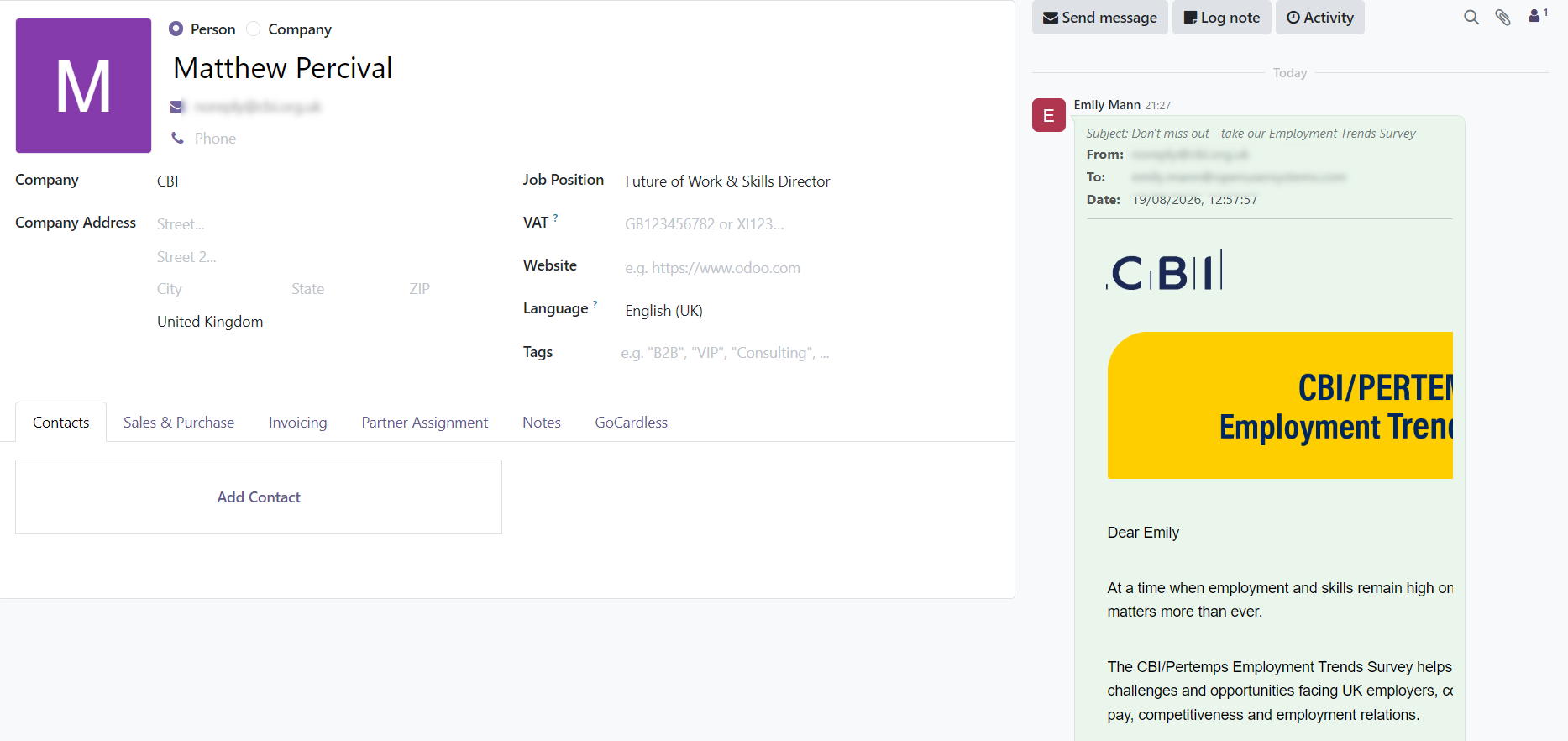
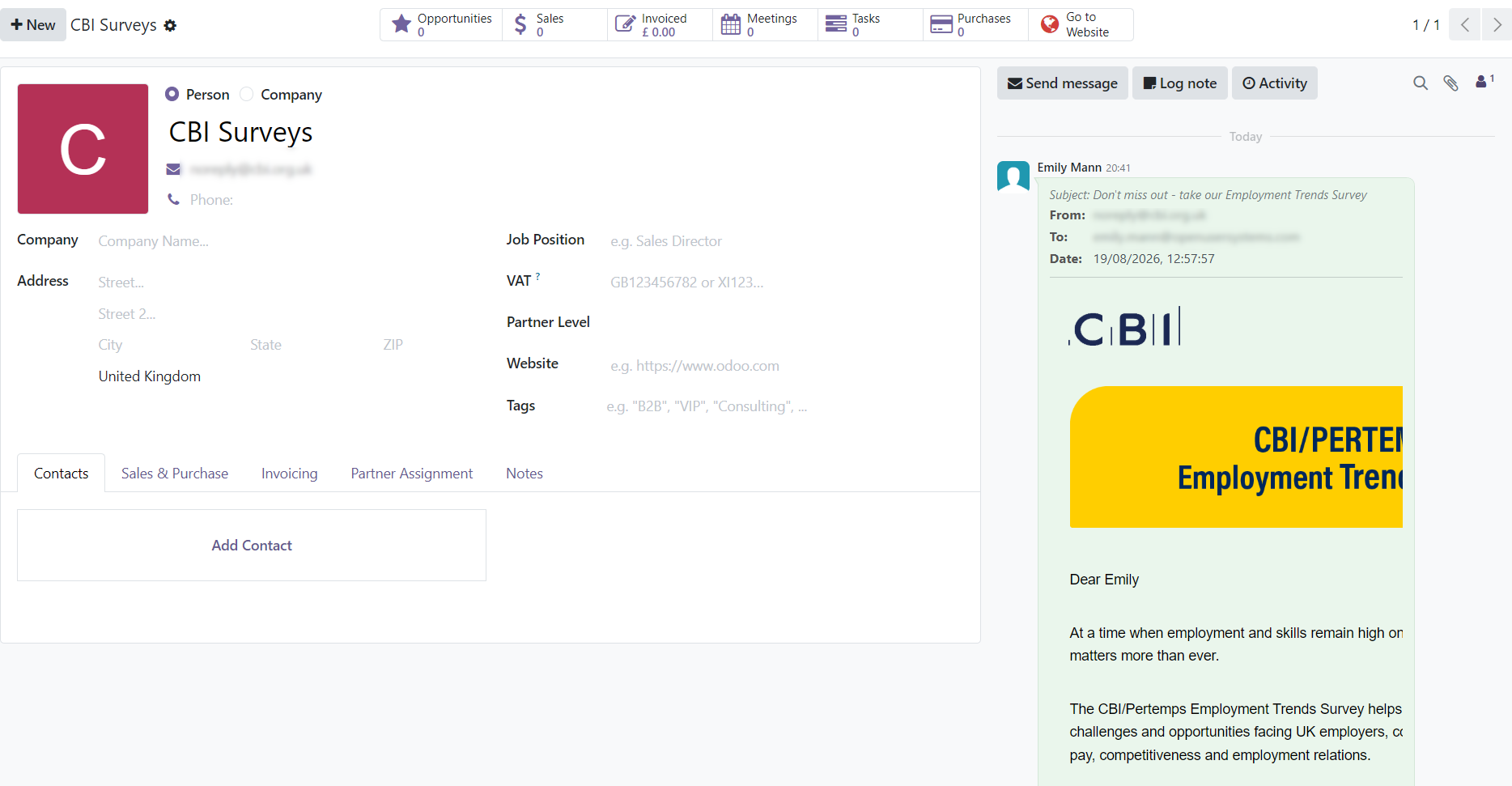
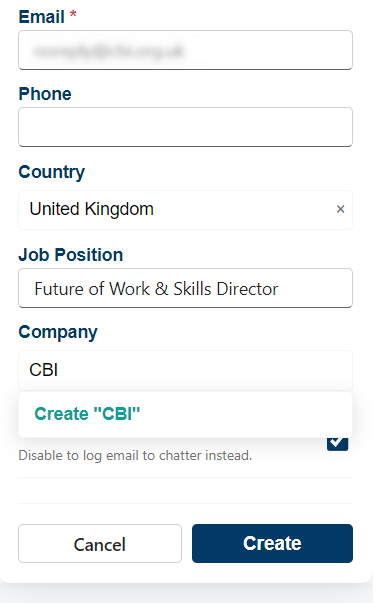
If an unknown sender is already has a known company in Odoo OUS Hub will ask you to create a new contact and link it to the existing company, which you will then be able to see in your Odoo desktop
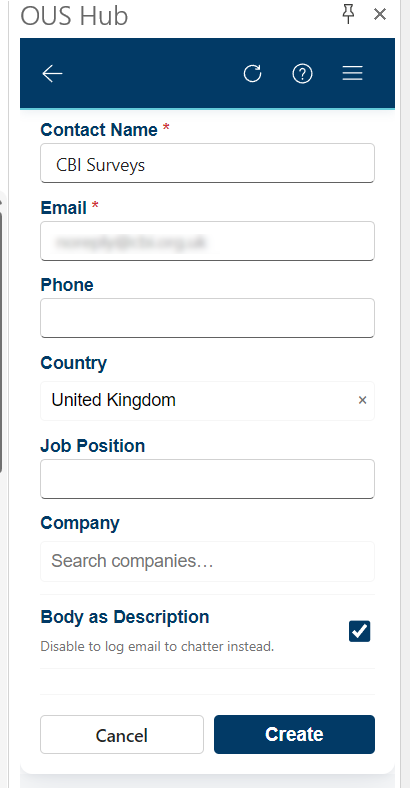
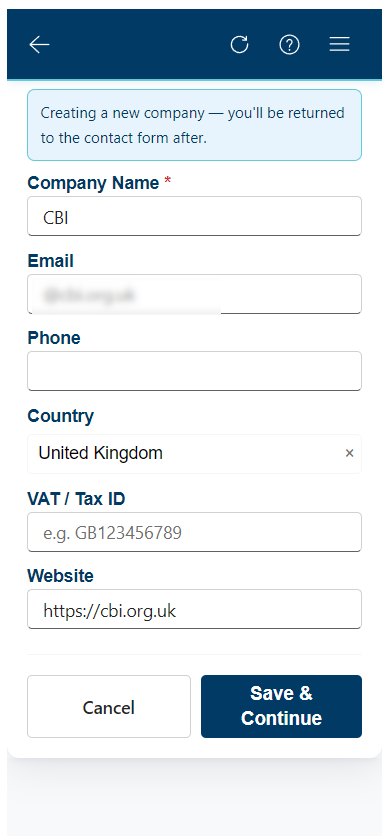
If the sender is both unknown and from an unknown company, OUS Hub will ask you to first create a new company. Once you have done this, you can then create a new contact in the same way as described above.
Attaching Emails Against a Record
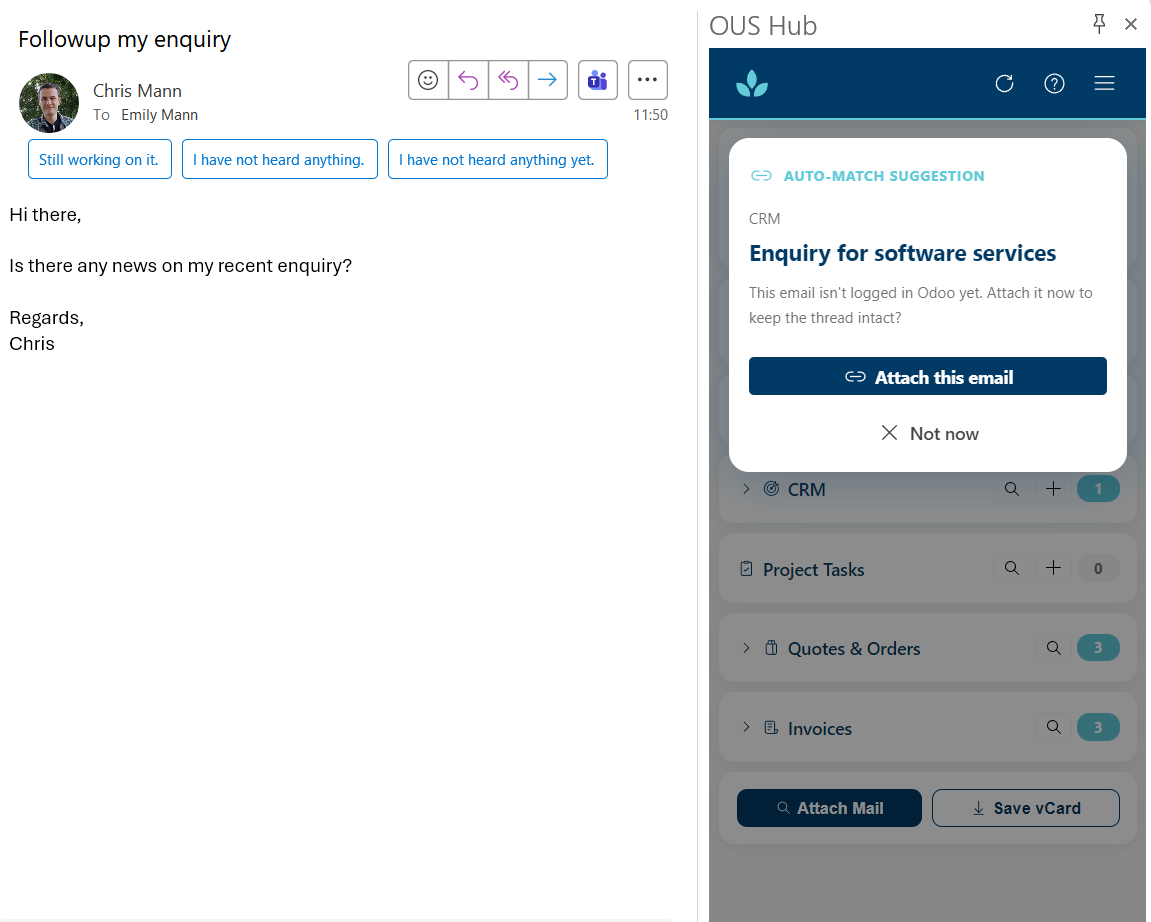
- With an email open, OUS Hub will ask you to attach the email.
- Click Attach next to the result.
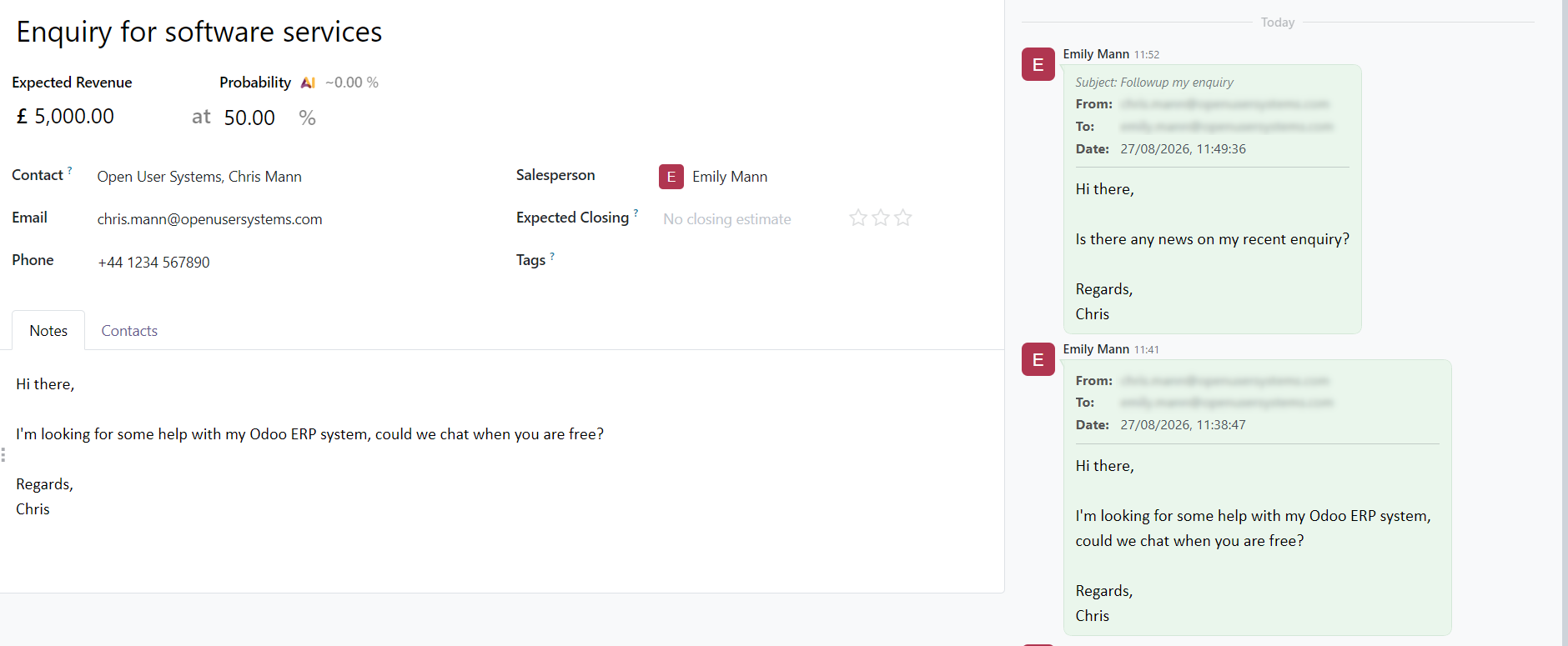
The email body, subject, date, sender, and any attachments are stored in the Odoo chatter. Embedded email signature images are automatically stripped so the chatter entry stays clean.
Creating a New Opportunity or Lead
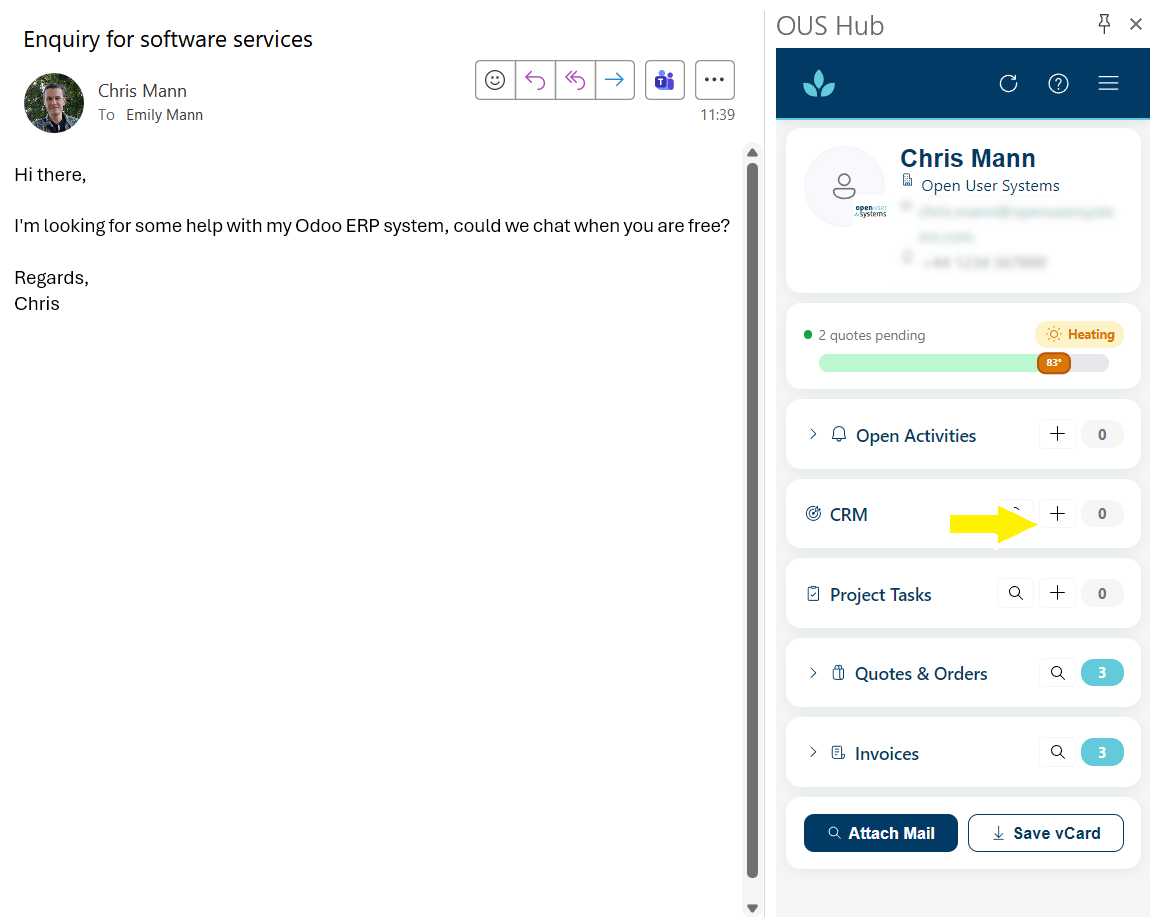
Click any Create (+) action from the Contact Card:
If you wish to create an opportunity or lead in Odoo from your email, click on the + symbol next to CRM
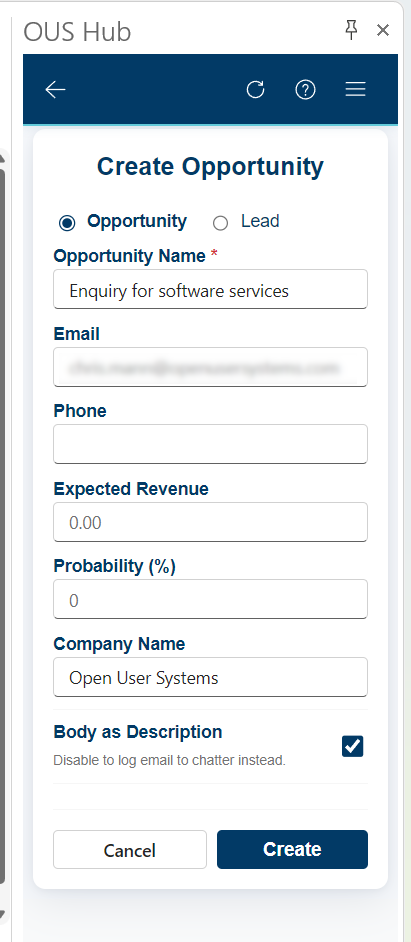
From there, fill in the required details and click Create
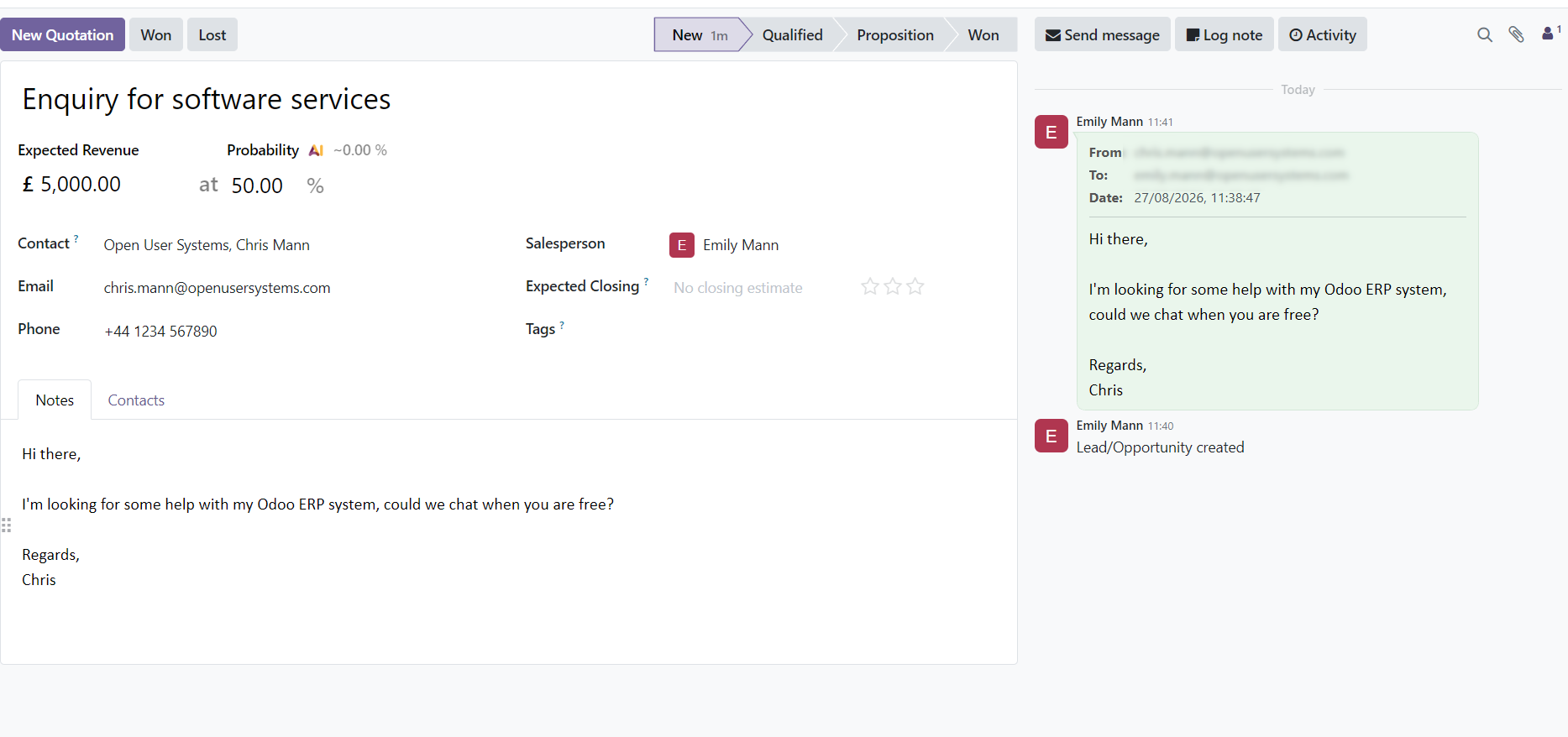
You should now be able to see the record and any details in your Odoo desktop
Attaching Activities against a Contact
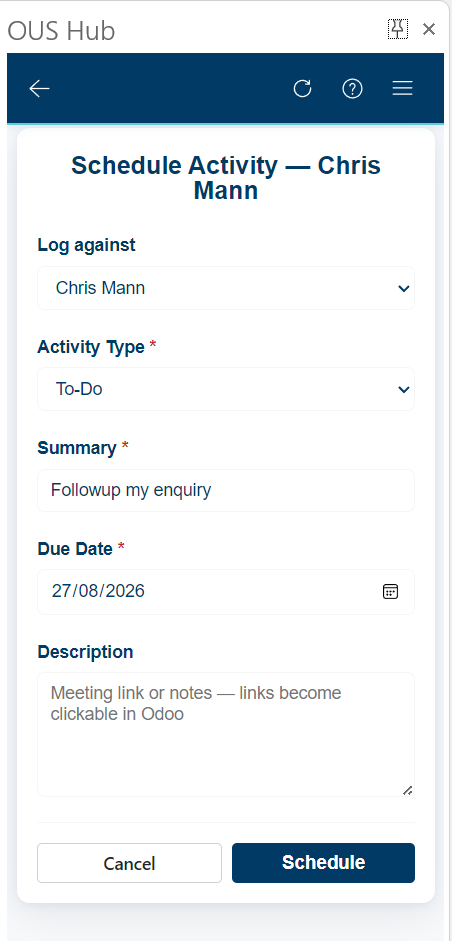
To attach activities against your records, in your Contact Card click the + symbol next to Open Acitivites and then fill in the details on the next screen and click Schedule
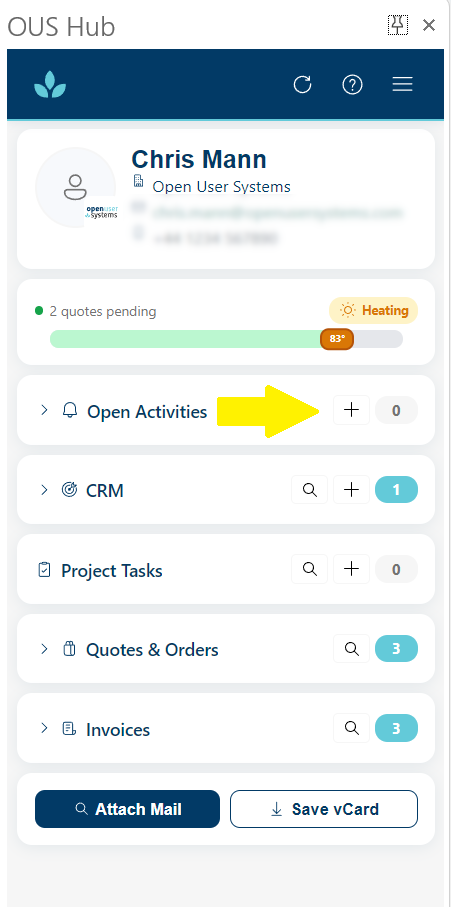
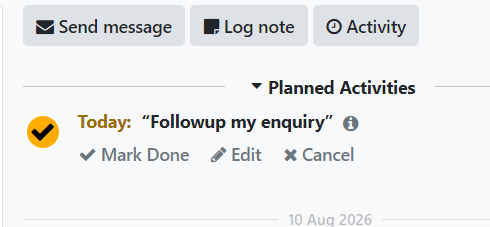
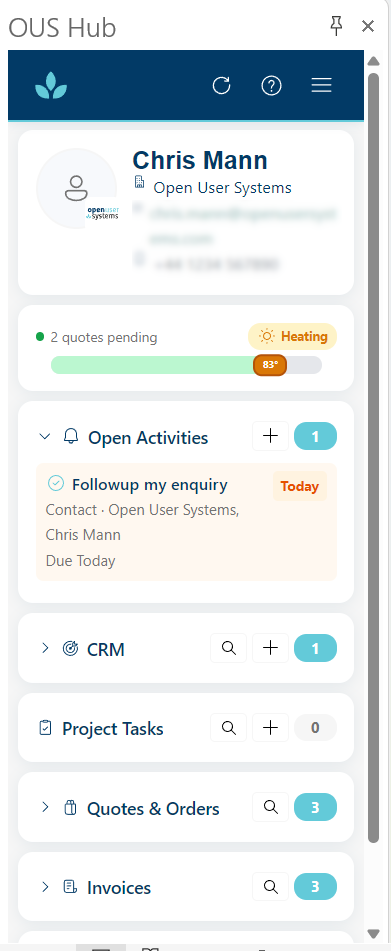
From there you will able to see any scheduled activities either in your Odoo desktop or against the contact card in Outlook
Downloading a Contact's vCard
On the Contact Card, tap the vCard action to download the Odoo contact as a .vcf file, ready to import into Outlook Contacts or any address book.
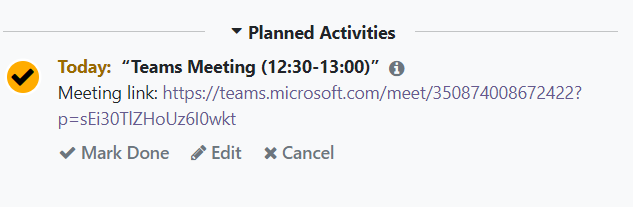
Storing a Meeting Invite
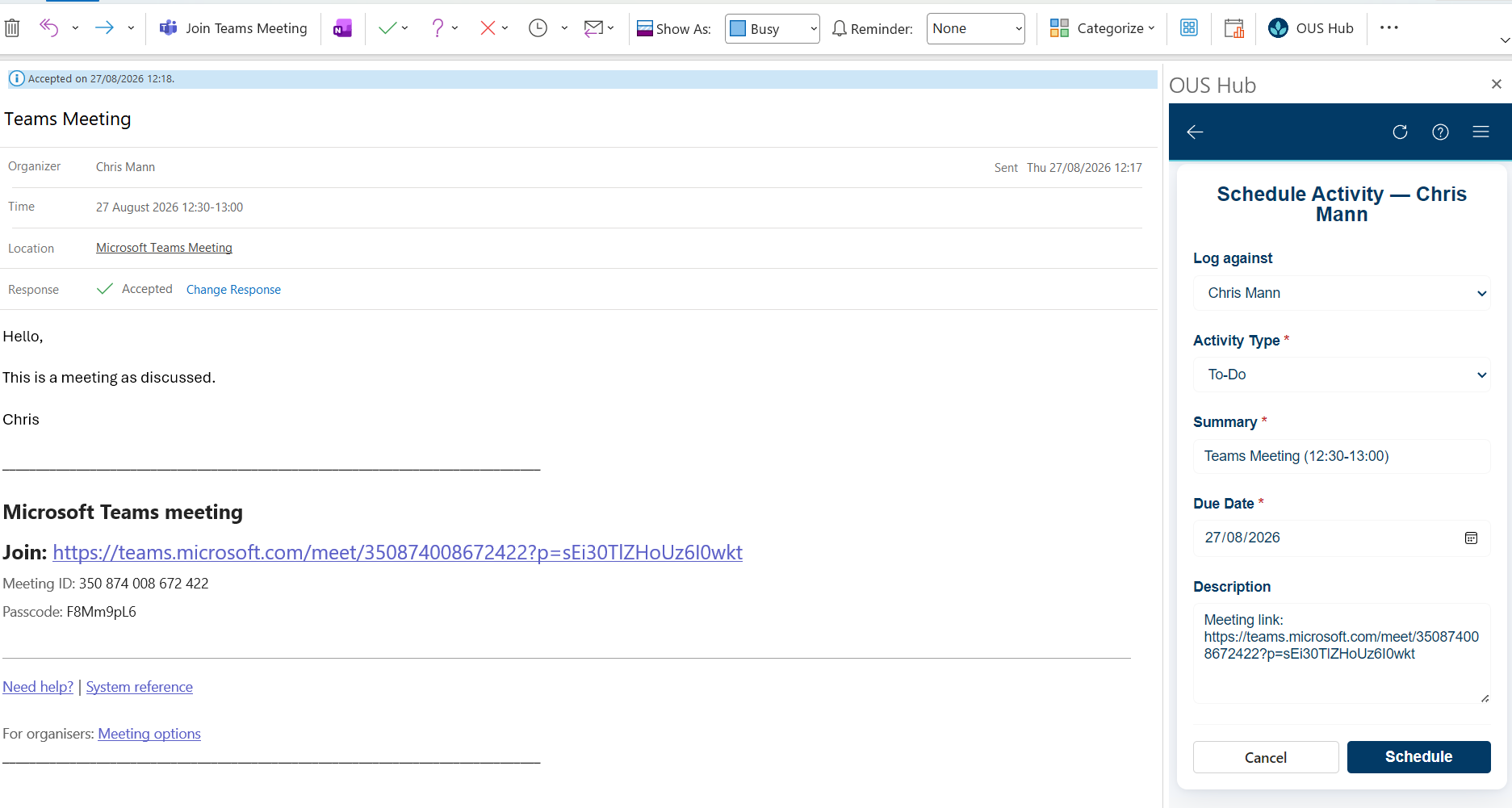
On a new meeting you are creating, or on an invite you have received, click the "OUS Hub" icon to load the taskpane.
Then click + to create an activity. The meeting link will be auto-detected and stored. Click Schedule. You should also be able to see your scheduled meeting in your Odoo desktop as well.
Advanced Features
Intelligent Auto-Matching
OUS Hub reads a special header (X-Odoo-Objects) that Odoo places on emails it sends. When present, OUS Hub uses this to identify the exact contact — even if the email was sent from a shared address or alias — and displays the correct Odoo record immediately, with no guesswork.
Subject Line Smart Matching (RegEx)
OUS Hub can automatically recognise patterns in email subject lines and suggest the matching Odoo record. For example:
TN1234> suggests Helpdesk Ticket HT00123SO0042> suggests the matching Sale OrderPO0017> suggests the matching Purchase Order
This saves you searching manually for the right record to attach to. Patterns are configured per model in the custom models settings.
Custom Module Support
If your Odoo instance has custom or third-party modules, OUS Hub can be configured to include those models in searches and on the Contact Card. In Settings, paste a JSON snippet defining your custom models — no changes to Odoo or the add-in are required.
A custom model entry looks like this:
{
  "modelName": "quality.alert",
  "displayField": "display_name",
  "referenceField": "title",
  "emailField": "partner_id",
  "displayName": "Quality Alerts",
  "domain": [["date_close", "=", false]],
  "canCreate": false,
  "subjectRegex": "QA\\d+"
}
| Field | Purpose |
|---|---|
modelName |
Odoo technical model name |
displayField |
Field used as the record title in search results |
referenceField |
Secondary reference field (e.g. a number or code) |
emailField |
Field used to match the email sender (partner_id or a plain email string field) |
displayName |
Friendly label shown in the add-in UI |
domain |
Odoo domain filter to limit search results |
canCreate |
Whether the add-in offers a Create option for this model (disabled for certain modules) |
subjectRegex |
Regular expression to auto-match against the email subject line |
Note: Many-to-many fields (
x2many) are not supported. Only string and numeric field types work, with the exception ofemailFieldwhich also acceptspartner_id.
Settings & Configuration
Click the Settings (cog) icon in the add-in header to review your connection details and manage custom model definitions.
Developer Tools
In Settings, scroll to Developer Tools to open the on-screen debug log. If you need to report an issue to support, share the log output along with your message.